Running Jobs via Web Interface
This page explains how to run a simple density functional theory calculation to obtain electronic band structure of silicon via our main Web Interface.
Before going into the detailed step-by-step instructions, first we present a short video tutorial to get an overview of the process and look-and-feel of various UI components of Mat3ra web platform.
Running simulations in Mat3ra web platform involves three main steps:
- Specify the material system by creating or importing crystal structure
- Create or import workflow, which specifies the simulation steps
- Create and submit job with material(s) of interest, workflow steps and required compute parameters.
Each account is pre-configured with a default material and workflow. Silicon with standard FCC structure is the default material, and "Total Energy" calculation with Quantum ESPRESSO is the default workflow added to each account on creation. However, it is possible to set a different material and workflow as default during the account creation or later. We maintain a "Bank" (collection) of materials and workflows, which includes both Mat3ra-curated and user contributed material structures and workflows.
1. Material structure
There are several ways, we can add new material structures to our account collection:
- Import crystal structures from the Materials Bank
- Import crystal structures from a third-party source such as Materials Project using Import action
- Upload crystal structures from your local computer such as CIF, POSCAR formatted files using Upload action
- Create a new material structure from scratch using Materials Designer.
To import a material or workflow from the Bank to user's own account collection, select the "Bank" option in the left-hand sidebar, and then select "Materials" or "Workflows" as the user prefers. Then select the desired material or workflow entry and click "Copy" button in the Actions column, as explained in more detail here. Readers can find additional details on how to import materials with the aid of the incorporated Mat3ra Materials Designer tool, as well as further setting a material as the default for the account.
2. Workflow steps
A workflow can be created from scratch or imported from the Workflows Bank. In the animation below, we demonstrate how to import the "Band Structure + Density of States" workflow for Quantum ESPRESSO from the Workflow Bank to our account collection.
The above task involves following steps:
- Navigate to the Workflows Bank page by clicking on the "Bank" option in the left-hand sidebar
- Search with the text "curators" to filter workflows created by the Mat3ra "Curators" account
- Sort workflows by name, and look for the "Band Structure + Density of States" workflow for Quantum ESPRESSO and click on the "Copy" button to add it to our account collection. If the copy button is not visible, please click on the vertical dots in the Actions column to reveal hidden action items.
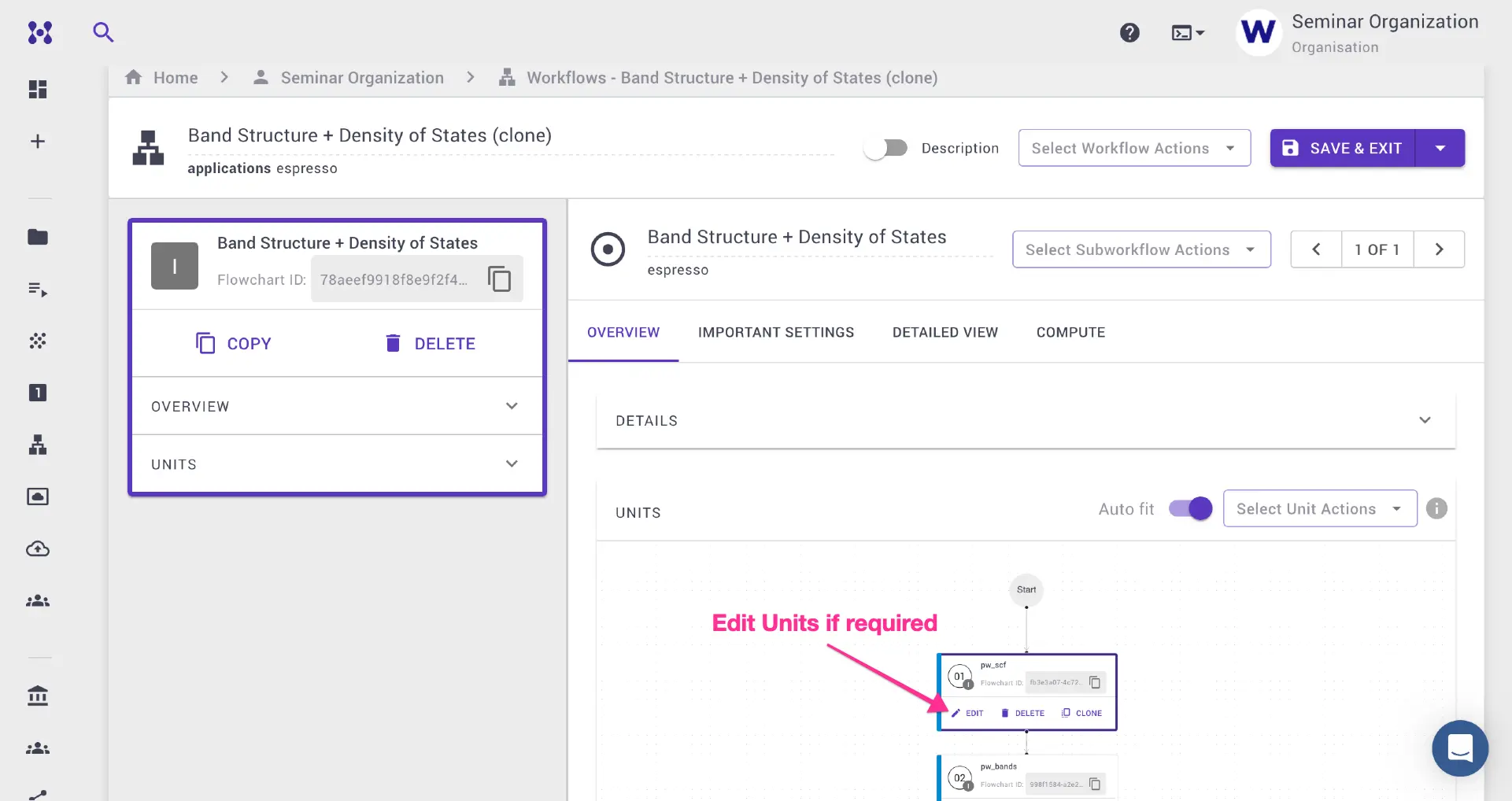
Now the workflow is added to the account collection, and can be found under the Workflows tab. Click on the workflow name to open the workflow details page, where further adjustments can be made to the workflow such as "Important Settings" or modify the input files for individual units.
3. Job Designer
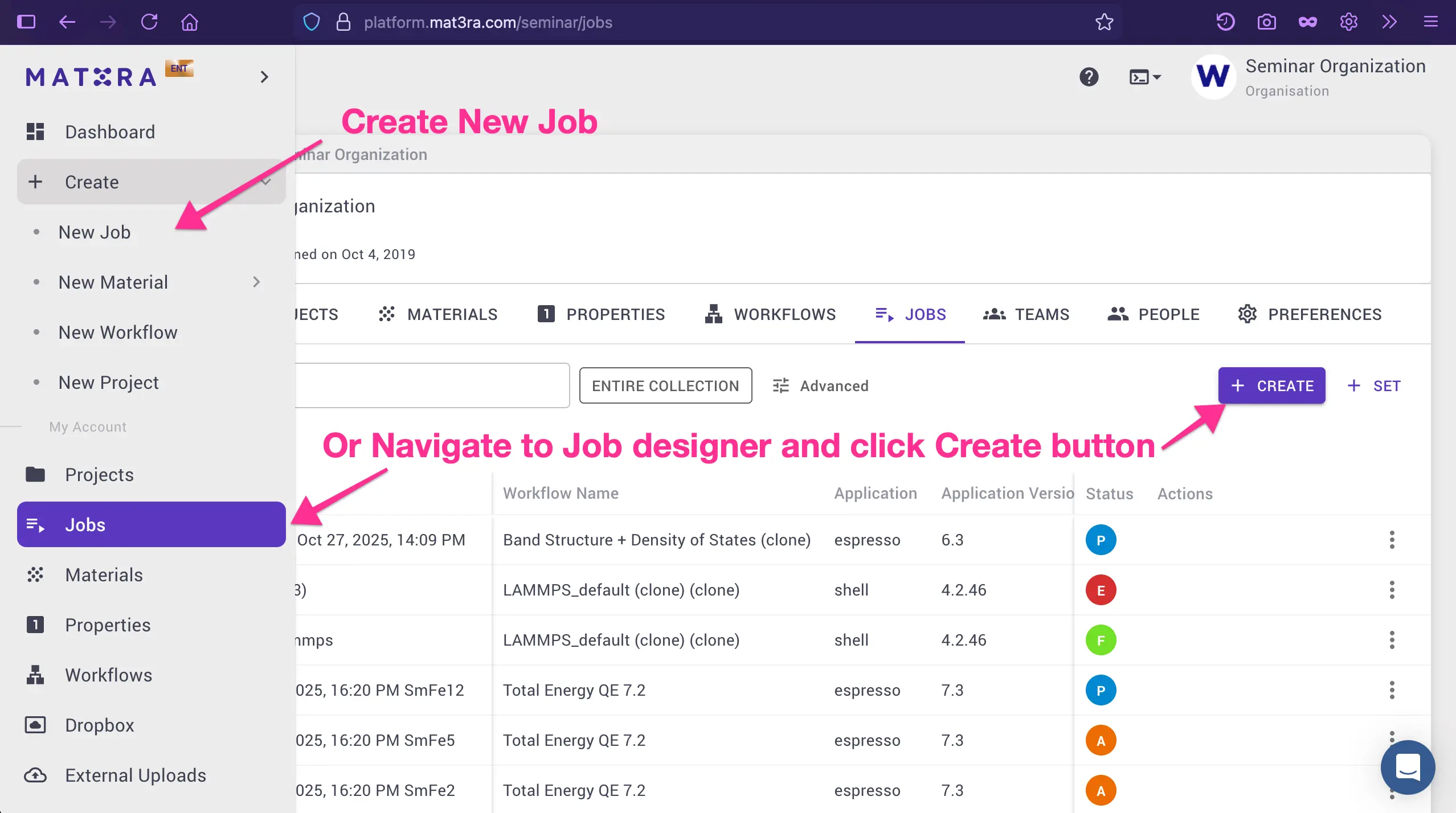
Once we have a material structure and workflow in hand, we can either use the "Create Job" button in the left-hand sidebar or first navigate to the Jobs Designer page and then click on the "Create" job button.
On the Job creation page, we can:
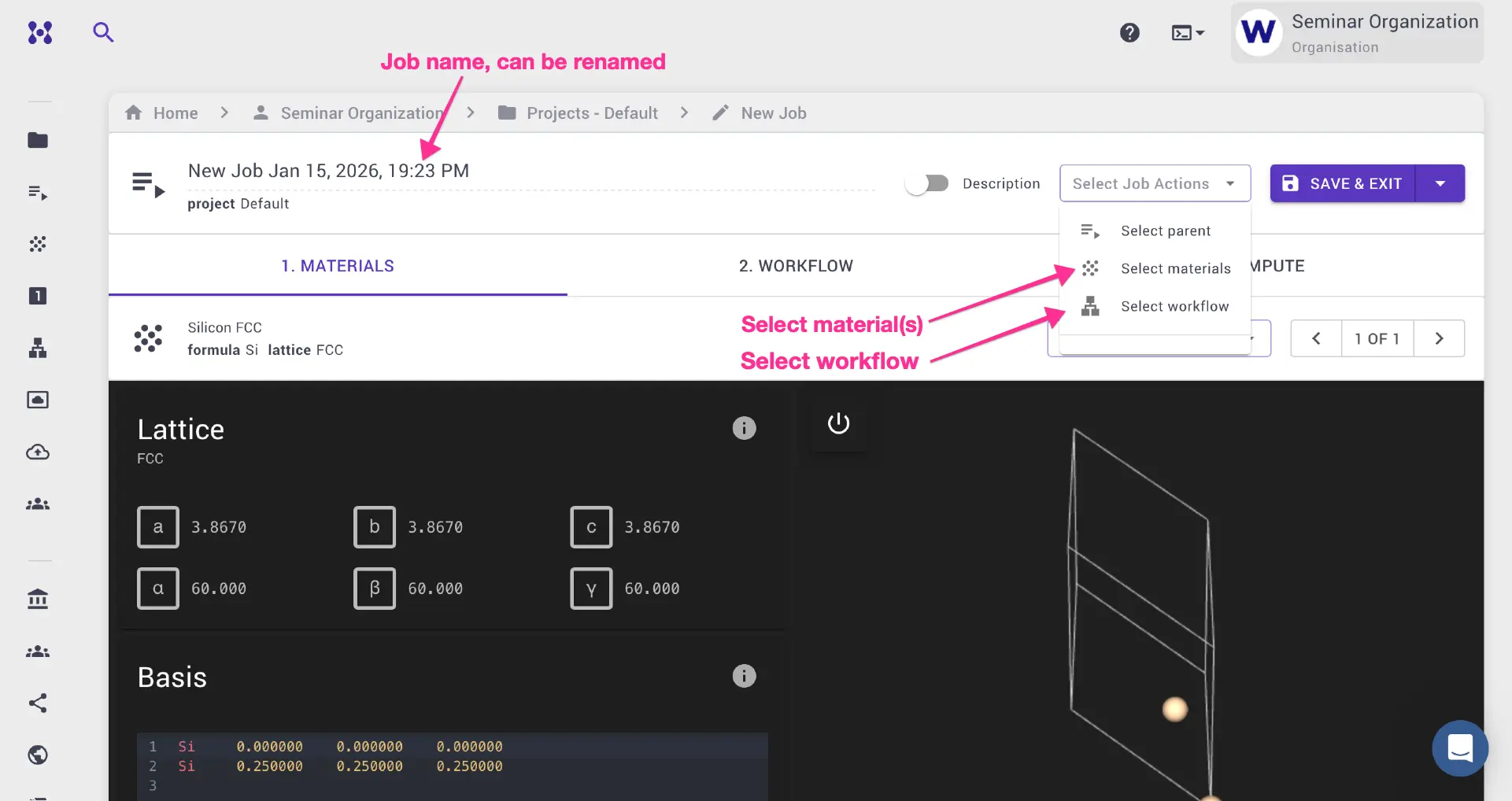
- Click on the "Select Job Actions" dropdown menu, and select a material or multiple materials from user's account collection (in this tutorial, we will use the default selection of Silicon)
- Agiain, click on the "Select Job Actions" dropdown menu, click "Select Workflow" and choose "Band Structure + Density of States" workflow that we imported earlier
- Navigate among "Materials", "Workflow" and "Compute" tabs to review and adjust various parameters if needed.
3.1. Materials Tab
Materials Tab lets the user choose one or more previously imported materials for use in the calculation. We will proceed with the default structure of Silicon for this demonstration.
3.2. Workflow Tab
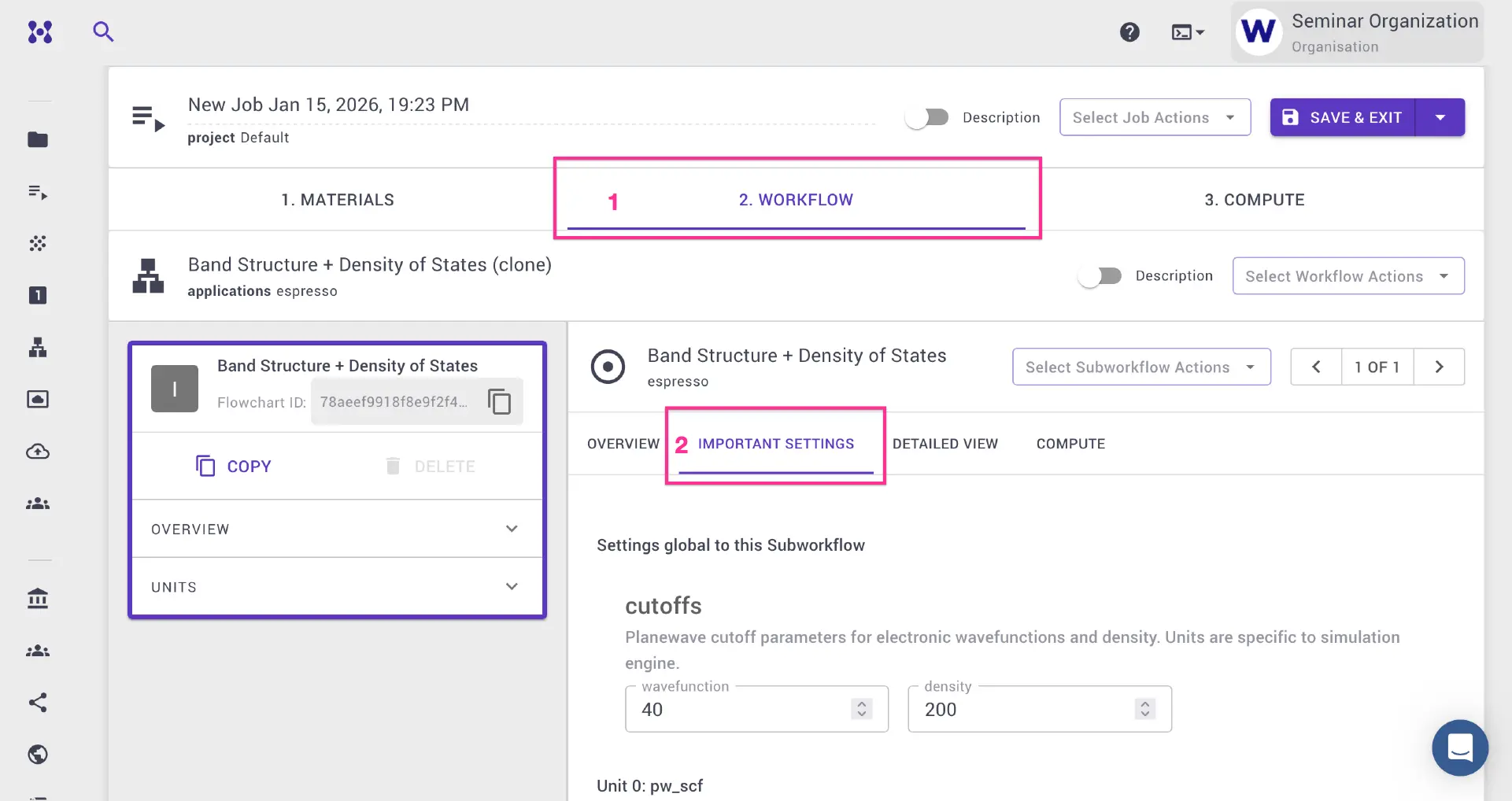
Simulations usually have multiple steps that need to be executed in a certain order. This sequence of steps are defined as a "Workflow".
A workflow consists of one or multiple "Subworkflows", as such each Subworkflow can only contain one modeling engine and one theoretical model (eg. Quantum ESPRESSO, or "espresso", and density functional theory respectively). Therefore, if a simulation involves multiple simulation engines in the same workflow, e.g, Quantum ESPRESSO for DFT and LAMMPS for molecular dynamics, then we must create multiple subworkflows.
The subworkflow "Overview" tab contains individual computational building blocks or "Units". Various simulation parameters can be reviewed and adjusted under the "Important Settings", such as: k-point grid and k-point path in the reciprocal space, relevant for a "Band Structure" calculation. Finally, "Save and Exit" the job designer.
3.3. Compute Tab
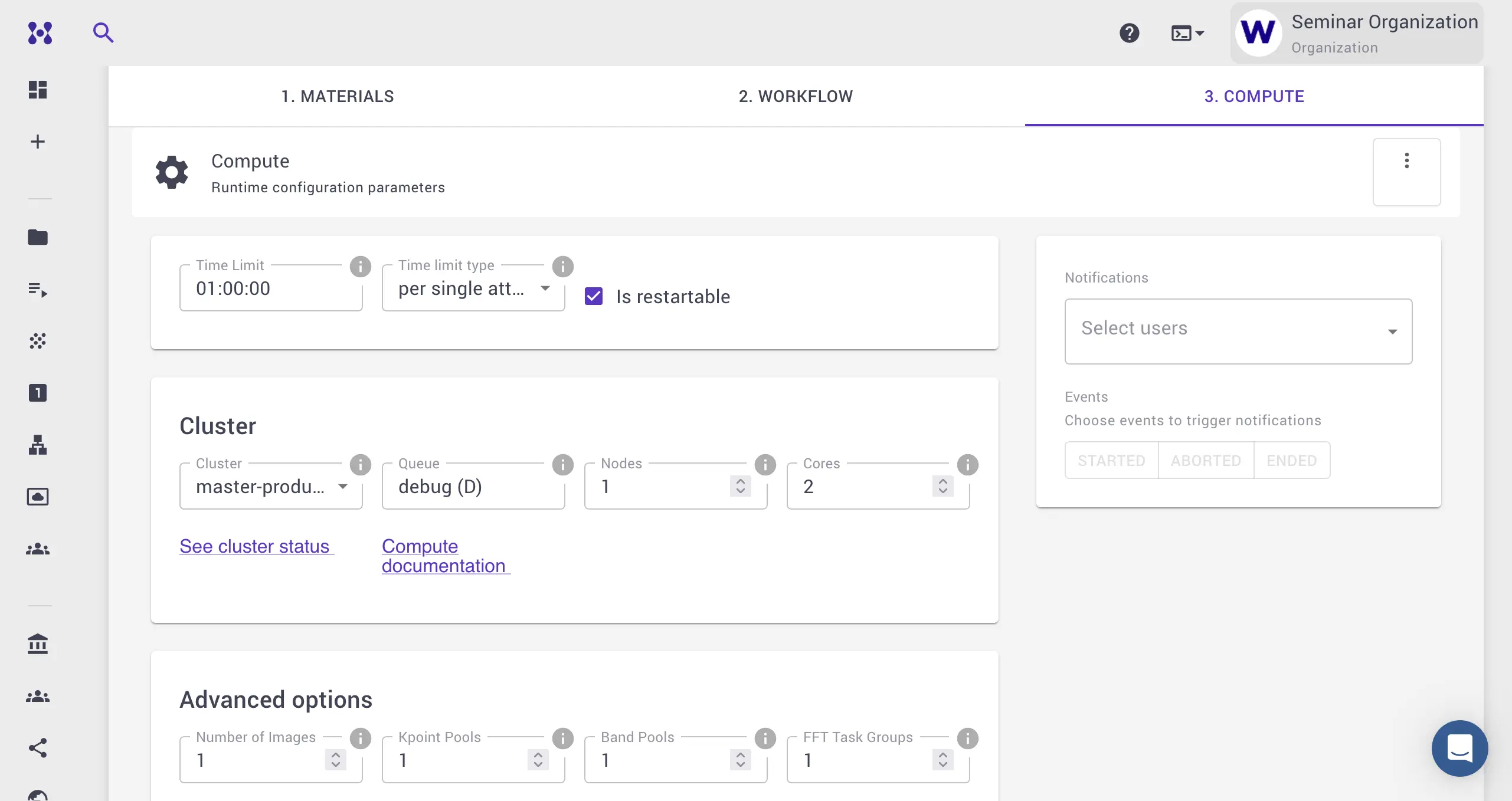
The "Compute" tab lets the user set
various compute parameters, such as cluster, queue, number of nodes and
number of processor cores per node to be used for the simulation, maximum time
limit and other relevant compute parameters. We set the maximum time limit for
the calculation to properly schedule the allocation of resources. The format is
HH:MM:SS, so that 01:00:00 corresponds to up to 1 hour runtime. One can also
choose to be notified of the job status by clicking on his/her name in the
"Notifications" section.
4. Run Calculation
After saving the job, the user is redirected back to the default "Project" page. Here, the user can submit the job and track its status.
4.1. Submit and Track Progress
The user can run the job by clicking on the "Run" button in the Actions column, or clicking on the three vertical dots and choosing "Run" action.
The status will change from "pre-submission" to "submitted". This means that the job is finally submitted to our computing clusters. Depending on the load, it may take some time for it to become "Active" and thus start executing.
The user can click on the job name to monitor the progress of the job in real time within the Job Viewer Interface.
4.2. View Results and Access Files
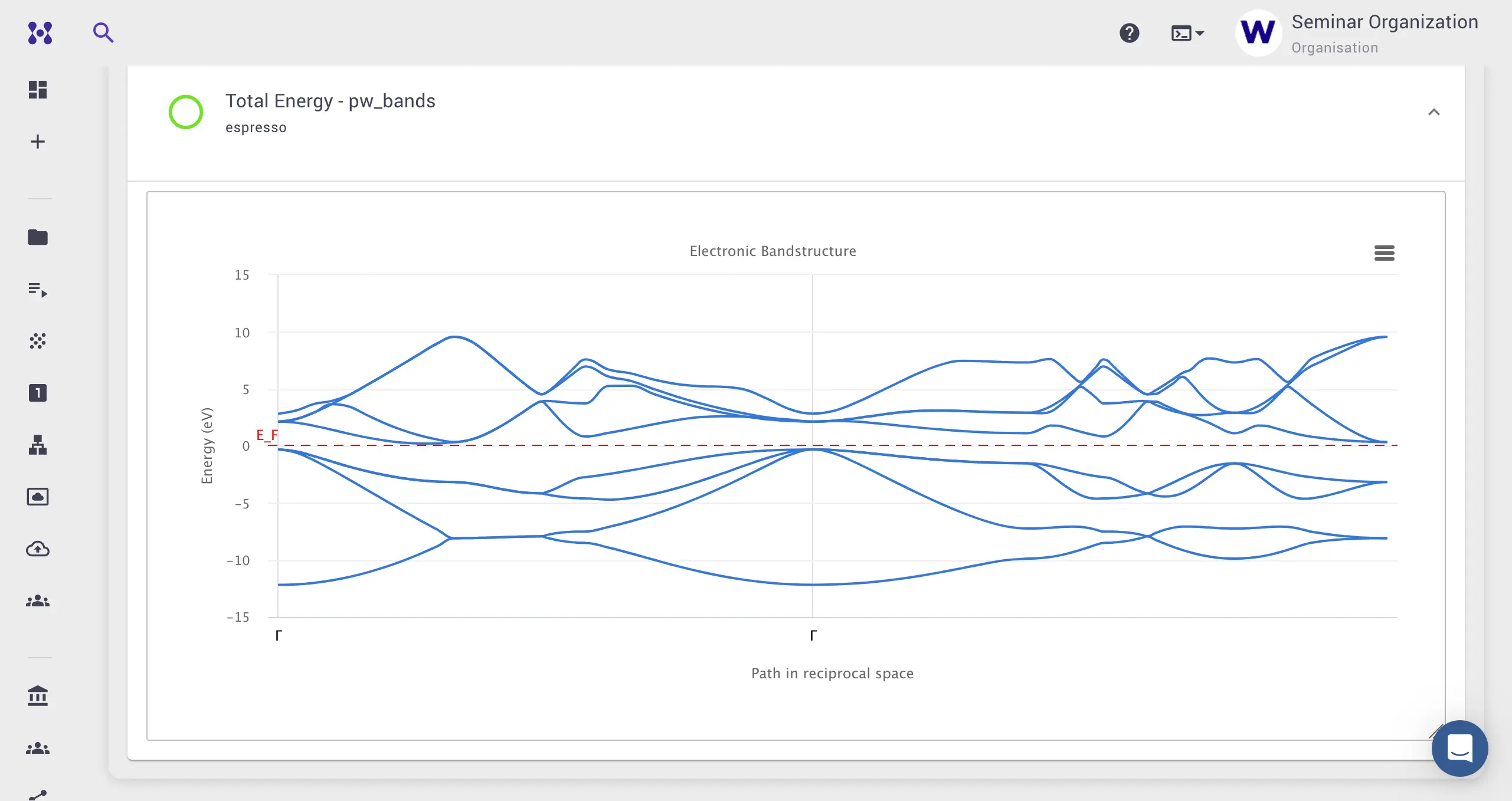
The Job Viewer screen tracks the input parameters, output text, and convergence parameters involved in the computation (total energy in this tutorial). Once the job is completed, user can navigate to the Results Tab to view summary of results, and preview or download output files from the "Files" tab.
5. Done
We have demonstrated in the present page how a simple electronic band structure calculation can be run using Mat3ra web interface. For a more comprehensive tutorials, readers may refer to the dedicated "Tutorials" section of our documentation.