Account Menu
Clicking Account Badge in the top right corner opens the Account Navigator modal on the right-hand side of the page. The general appearance of this sidebar is portrayed in the following image.
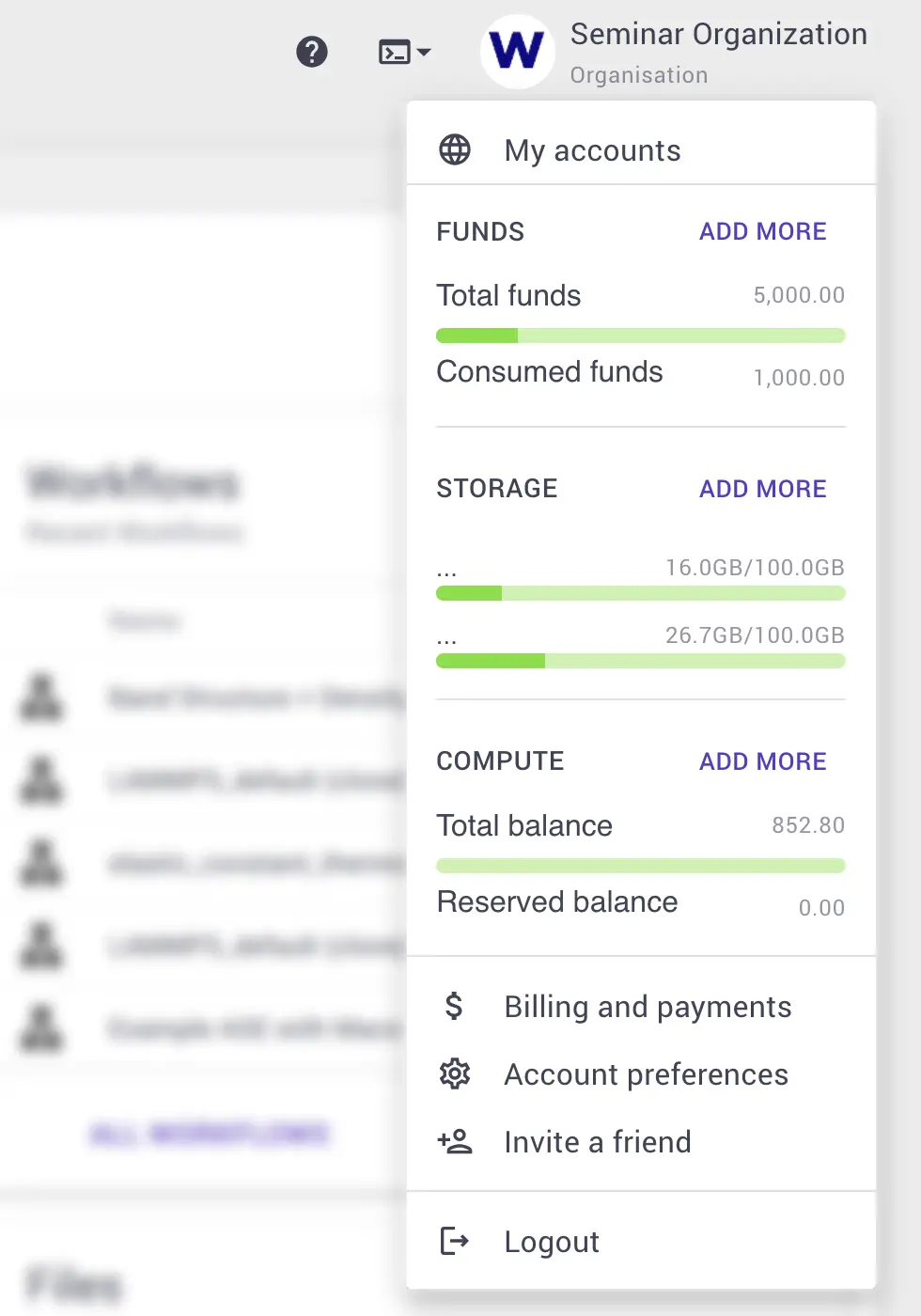
The following menu entries are worth noticing.
| Menu Item & Icon | Description |
|---|---|
| Account Switcher | Enables switching between personal and organizational accounts. Opens in a small window showing the user's active accounts. Clicking one triggers switch to that account. |
| Quota, Queue, Service Level | This section shows a quick snapshot of the status of the user's quota: Storage, job queue breakdown and the service level. The user can easily upgrade the service level, to obtain more compute power, by clicking the upgrade button. If the user wants to compare service levels, the user can find more information in the Account menu, below. |
| Account Balance | A snapshot of the user's current balance, quickly credit the balance using the Apply Credit Button |
| Account Preferences | A link to the user's account page. In here the user can find his/her profile, preferences and service level. |
| Billing & Payments | A link to the billings and payments section. In here the user can inspect compute charges, payment records and payment methods. |
| Remote Desktop | Opens a desktop session (VNC) on Exabyte.io remote server. |
| Invite a friend | Earn credits by inviting people to join Exabyte.io |
| Logout | Secure logout |
Account Switcher
Switching between Accounts is described in a separate part of the documentation.
Account Snapshot
The right-hand sidebar also offers a snapshot of the Account, containing some basic information: storage quota on each available computing cluster, job queue summary, service level, and finally the current balance. The possibility to expand or replenish these two latter items is also offered next to each one of them.
Account Preferences
Clicking Account Preferences lets the user
customize account-related information and settings. Such preferences are
reviewed extensively in their own documentation section.
Billing and Payments
The Billing and Payments link
redirects to the Billing page. Here, a series of tabs at the top show in turn
the different charges applied to the Account (for each job separately)
, the payments made by the
owner , and the chosen payment
methods . More details about such
billing and payments information can be found here.
Invite a Friend
The Invite a Friend option
lets users send an email invitation to a friend or colleague who might also
benefit from using our platform. Both the sender and recipient will get a gift
in the form of Account balance credit when the new registration is approved.
Logout
The Logout option should be
pressed once operations under the current Account have been completed. Other
users can then login to the platform with their own credentials.